Unlocking the Power of Excel: A Guide to the Excel Developer Tab
.png)
Excel is a versatile tool that most people use for basic tasks like data entry, calculations, and charting. However, lurking beneath its surface is a feature that can elevate your Excel game to new heights: the Developer Tab. This often-overlooked section of Excel is a gateway to powerful tools that can help you automate tasks, create custom functions, and interact with external data sources. In this article, we’ll explore what the Developer Tab is, what it does, and why you should consider using it to enhance your productivity.
What Is the Developer Tab?
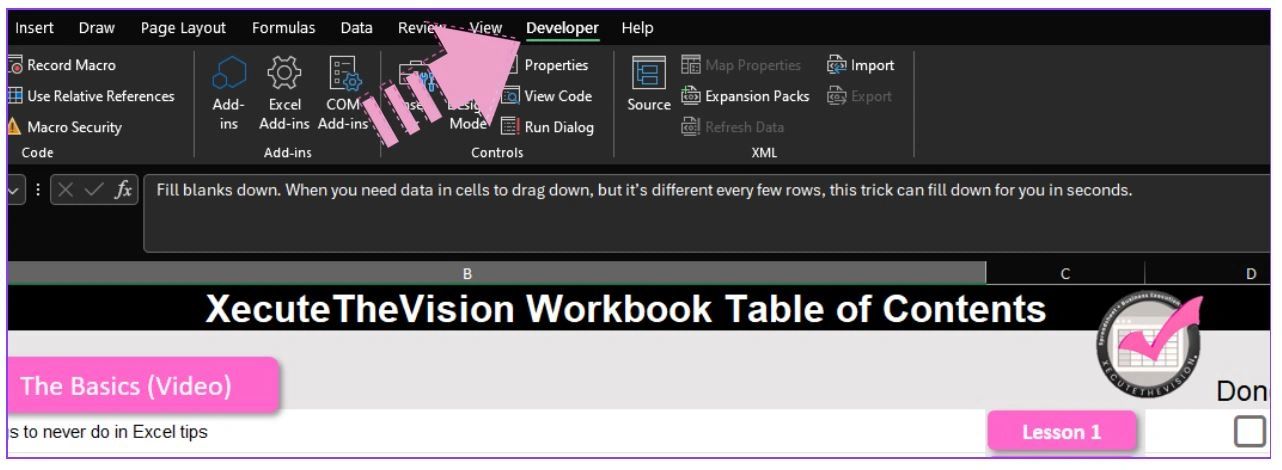
The Developer Tab is a hidden section in Excel that provides access to advanced features designed for users who want to create more complex and customized spreadsheets. By default, the Developer Tab is not visible on the Excel ribbon, but it can be easily enabled in a few steps.
How to Enable the Developer Tab
- Open Excel and click on the File tab.
- Select Options from the menu.
- In the Excel Options window, click on Customize Ribbon.
- In the right-hand panel, check the box next to Developer.
- Click OK to save your changes.
Once enabled, the Developer Tab will appear on the ribbon, offering a range of powerful tools and options.
Key Features of the Excel Developer Tab
The Developer Tab provides several features that can significantly extend Excel’s capabilities:
1. Visual Basic for Applications (VBA)
VBA is a programming language built into Excel that allows you to automate repetitive tasks, create complex functions, and even design custom user interfaces. The Developer Tab gives you direct access to the VBA editor, where you can write and edit macros (small programs) to automate almost any task in Excel.
2. Macros
Macros are sequences of instructions that automate tasks in Excel. With the Developer Tab, you can record, edit, and run macros. For example, if you frequently perform a series of formatting steps on a dataset, you can record a macro to do it for you in a single click, saving time and reducing errors.
3. Form Controls
Form Controls are interactive elements, such as buttons, checkboxes, drop-down lists, and sliders, that you can add to your Excel sheets. These controls can make your spreadsheets more interactive and user-friendly, particularly in scenarios where you need to gather user input or create dynamic dashboards.
4. ActiveX Controls
Similar to Form Controls, ActiveX Controls offer more advanced customization options and greater control over the appearance and behavior of your forms. These controls are useful when creating more sophisticated user interfaces or when integrating Excel with other applications.
5. XML Tools
The Developer Tab includes tools for working with XML (eXtensible Markup Language) data. You can import and export XML files, map XML data to cells, and manage XML schemas. This feature is particularly valuable for users who need to work with structured data from external sources, such as databases or web services.
6. Add-Ins
The Developer Tab allows you to manage Excel add-ins, which are additional programs or features that can extend Excel’s functionality. You can install, enable, or disable add-ins directly from this tab, making it easier to customize your Excel environment to suit your needs.
Why You Should Use the Developer Tab
The Developer Tab isn’t just for IT professionals or seasoned programmers; it’s a valuable tool for anyone who wants to take their Excel skills to the next level. Here are some compelling reasons to start using the Developer Tab:
1. Automation and Efficiency
The ability to automate repetitive tasks with macros and VBA can save you hours of manual work. Whether you’re cleaning data, generating reports, or performing complex calculations, automation can streamline your workflow and reduce the risk of human error.
2. Customization
With the Developer Tab, you can create custom functions, forms, and controls that tailor Excel to your specific needs. This customization allows you to build spreadsheets that are not only more powerful but also more user-friendly.
3. Advanced Data Handling
The XML tools and ActiveX controls available on the Developer Tab are essential for handling complex data scenarios, such as integrating external data sources, building interactive dashboards, or creating advanced data-entry forms.
4. Learning and Growth
Using the Developer Tab introduces you to VBA and programming concepts, offering an excellent opportunity to develop new skills. Even if you’re new to coding, Excel’s macro recorder and the extensive online resources available make it easy to get started with VBA.
5. Enhanced Reporting
Form and ActiveX controls allow you to create interactive reports and dashboards that can dynamically respond to user inputs. This level of interactivity can make your reports more engaging and easier to navigate for stakeholders.
The Developer Tab in Excel is a powerful feature that can transform the way you work with spreadsheets. From automating routine tasks to creating customized solutions, the tools available in the Developer Tab offer endless possibilities for enhancing productivity and efficiency. Whether you’re a beginner looking to explore new capabilities or an advanced user seeking to push Excel to its limits, the Developer Tab is worth exploring. Enable it today, and start unlocking the full potential of Excel!