
How to Use Goal Seek in Google Sheets a Step by Step Guide
.png)
These are the exact steps to set up Google Sheets Goal Seek to get your answer needed. Goal Seek is one of the most useful tools in Google Sheets that most people have never heard of. It solves a problem that comes up constantly in financial analysis, business planning, and budgeting: you know the answer you want, but you need to figure out what input gets you there.
Instead of manually changing a number over and over and recalculating until you land on the right result, Goal Seek does the work automatically. You tell it what result you want and which cell to adjust, and it finds the answer for you.
This guide covers exactly what Goal Seek does, when to use it, how to install it, and how to run it with clear step by step instructions you can follow immediately.
What Is Goal Seek in Google Sheets?
Goal Seek is a what-if analysis tool that works backwards from a desired result to find the input value needed to achieve it.
Most spreadsheet formulas work forward. You enter inputs and the formula calculates an output. Goal Seek reverses that process. You specify the output you want and tell Google Sheets which input to change, and Goal Seek adjusts that input until the formula produces your target result.
A simple example: You have a loan payment formula that calculates your monthly payment based on the loan amount, the number of payments, and the interest rate. Normally you would enter an interest rate and see what the payment comes out to. With Goal Seek you can instead say "I want my monthly payment to be $1,500. What interest rate makes that happen?" and Goal Seek finds the answer.
When Should You Use Goal Seek?
Goal Seek is most useful any time you know the result you need but are working backwards to find the input that produces it.
Financial planning: You want to save $50,000 in three years. Goal Seek tells you how much you need to save per month to hit that target.
Loan analysis: You know what monthly payment you can afford. Goal Seek finds the interest rate or loan amount that keeps you within that payment.
Sales targets: You need to hit a specific revenue number. Goal Seek tells you how many units you need to sell at your current price to get there.
Profit margin goals: You have a target profit margin in mind. Goal Seek tells you what price you need to charge given your cost structure.
Break-even analysis: You want to know the exact sales volume at which your revenue covers your costs. Goal Seek finds that number precisely.
The key requirement is that your problem involves one unknown input and one target output connected by a formula. If you need to adjust multiple variables simultaneously, look at the Solver add-on instead, which handles multi-variable optimization.
Important: Goal Seek Is Not Built Into Google Sheets
Before diving into the steps, there is one thing you need to know. Unlike Microsoft Excel, Google Sheets does not have Goal Seek built in as a native feature. You need to install it as a free add-on from the Google Workspace Marketplace before you can use it.
The installation takes about two minutes and you only need to do it once. After that it is available in your Extensions menu any time you need it.
Step 1: Set Up Your Spreadsheet
Before you install or run Goal Seek, set up your data correctly. Goal Seek needs three things to exist in your spreadsheet:
- A cell containing the input value you want to change
- A cell containing a formula that uses that input and produces a result
- A target result value you want the formula to reach
Example setup for a loan payment calculation:
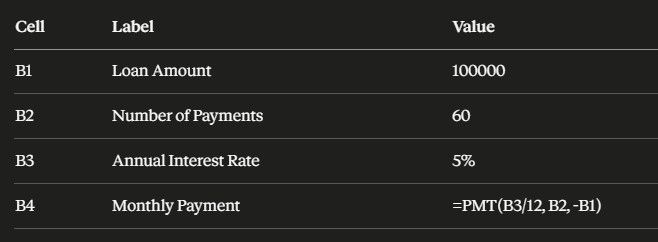
In this example:
- B3 is the input cell (the interest rate you want Goal Seek to adjust)
- B4 is the formula cell (the monthly payment calculated by PMT)
- Your target value is the monthly payment amount you want to achieve, for example $1,500
The formula in B4 is =PMT(B3/12, B2, -B1). This calculates the monthly payment based on the annual interest rate divided by 12 for the monthly rate, the number of payments, and the loan amount as a negative number.
Enter your starting values now. The interest rate in B3 does not need to be your final answer. It is just a starting point for Goal Seek to begin its calculation from. Using a reasonable estimate close to what you expect the answer to be helps Goal Seek find the solution faster.
Step 2: Install the Goal Seek Add-On
1. Click the Extensions menu at the top of Google Sheets.
2. Click Add-ons in the dropdown menu.
3. Click Get add-ons. The Google Workspace Marketplace opens in a new window.
4. In the search bar at the top of the Marketplace, type Goal Seek and press Enter.
5. Find the Goal Seek add-on in the results. Look for one published by a reputable developer with positive reviews.
6. Click on the add-on to open its detail page.
7. Click the Install button.
8. A permissions dialog will appear asking for access to your Google Sheets. Click Allow to grant the necessary permissions.
9. Wait for the installation to complete. You will see a confirmation message when it is done.
10. Close the Marketplace window and return to your spreadsheet.
The add-on is now installed and ready to use. You will not need to install it again for future Google Sheets files.
Step 3: Open Goal Seek
1. Click the Extensions menu at the top of your spreadsheet.
2. Find Goal Seek in the list of your installed add-ons and click on it.
3. Click Open or Start depending on which version of the add-on you installed.
A Goal Seek panel or sidebar will open on the right side of your screen. This is where you configure your calculation.
Step 4: Configure Your Goal Seek Settings
The Goal Seek panel has three fields you need to fill in. Each one is critical. Getting any of them wrong will produce an incorrect result or no result at all.
Set Cell
This is the cell containing your formula, the one whose result you want to control. In the loan example, this is B4, the cell containing the PMT formula that calculates the monthly payment.
Click in the Set Cell field and then click cell B4 in your spreadsheet, or type B4 directly into the field.
To Value
This is the target result you want the formula cell to reach. In the loan example, if you want a monthly payment of $1,500, type 1500 here.
Do not include dollar signs or commas. Just the number.
By Changing Cell
This is the input cell you want Goal Seek to adjust in order to reach your target. In the loan example, this is B3, the interest rate cell.
Click in the By Changing Cell field and then click cell B3 in your spreadsheet, or type B3 directly.
Your completed configuration should look like this:
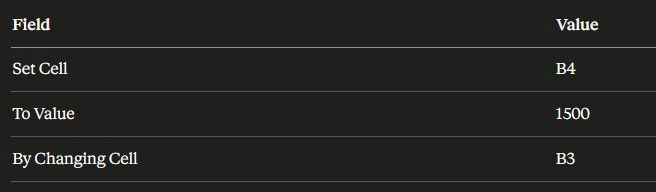
Double-check all three fields before proceeding. A common mistake is accidentally entering the same cell in both Set Cell and By Changing Cell, which will cause Goal Seek to fail.
Step 5: Run Goal Seek
1. Click the Solve button in the Goal Seek panel.
2. Goal Seek will begin iterating through values for the interest rate in B3, recalculating the PMT formula each time until it finds the interest rate that produces a monthly payment of $1,500.
3. Wait for the calculation to complete. For simple formulas this takes a second or two. For more complex formulas it may take slightly longer.
4. When Goal Seek finishes, it will update the value in your By Changing Cell, in this case B3, to reflect the interest rate it found.
Step 6: Review and Interpret Your Result
After Goal Seek completes, look at cell B3. It now contains the interest rate required to produce a monthly payment of $1,500 on a $100,000 loan over 60 months.
Check cell B4 as well. It should now display a value very close to $1,500. Goal Seek uses an iterative process and may land on a result that is extremely close to your target but not exactly equal due to rounding, for example $1,499.97 instead of $1,500. This is normal and the result is accurate for practical purposes.
If Goal Seek did not find a solution:
This usually means one of three things. The target value you entered is mathematically impossible given the constraints of your formula. The starting value in your By Changing Cell was too far from the actual answer for Goal Seek to converge. Or there is an error in your formula that is preventing it from calculating correctly.
Try adjusting your starting value in the By Changing Cell to something closer to what you expect the answer to be and run Goal Seek again.
Practical Examples of Goal Seek in Google Sheets
Example 1: Monthly Savings Goal
The scenario: You want to save $20,000 in 24 months. You are earning 3% annual interest on your savings. How much do you need to save per month?
Setup:
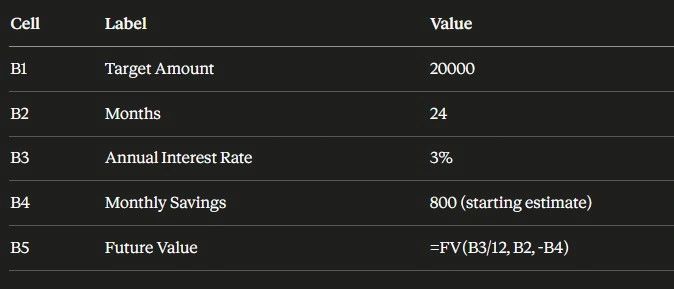
Goal Seek configuration:
- Set Cell: B5
- To Value: 20000
- By Changing Cell: B4
Goal Seek finds the exact monthly savings amount needed.
Example 2: Break-Even Units
The scenario: Your fixed costs are $15,000 per month. Each unit you sell generates $25 in gross profit. How many units do you need to sell to break even?
Setup:
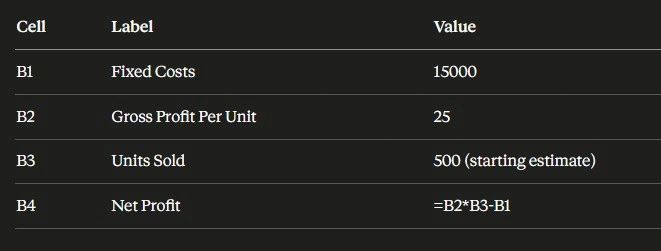
Goal Seek configuration:
- Set Cell: B4
- To Value: 0
- By Changing Cell: B3
Goal Seek returns 600 units as the break-even point.
Example 3: Target Revenue Price
The scenario: You need to generate $50,000 in revenue this month. You expect to sell 320 units. What price do you need to charge?
Setup:
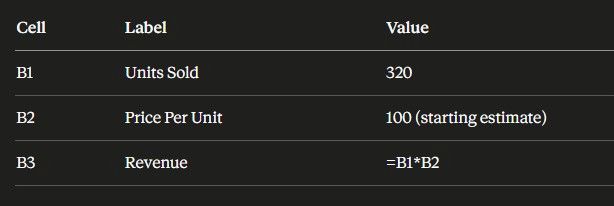
Goal Seek configuration:
- Set Cell: B3
- To Value: 50000
- By Changing Cell: B2
Goal Seek returns $156.25 as the required price per unit.
Tips for Getting the Best Results From Goal Seek
Start with a reasonable estimate. The value in your By Changing Cell before you run Goal Seek is the starting point for its iterative calculation. Starting closer to the expected answer helps Goal Seek find the solution faster and more reliably.
Use Goal Seek for one variable at a time. Goal Seek can only adjust one input cell per calculation. If your problem requires changing two or more variables simultaneously, the Solver add-on handles multi-variable optimization.
Make sure your formula is working before you run Goal Seek. If your formula has an error or produces incorrect results with your starting values, Goal Seek will not be able to find a valid solution. Test the formula manually first.
Check that your target is mathematically possible. Goal Seek cannot find a solution that does not exist. If you ask for a monthly payment that is lower than the interest alone on a loan, no interest rate can produce that result and Goal Seek will fail.
Keep a copy of your original values. Goal Seek overwrites the value in your By Changing Cell with the solution. If you want to preserve your original inputs, copy them to another cell or note them down before running Goal Seek.
Goal Seek vs Solver: Which Should You Use?
Goal Seek is the right tool when you have one unknown input and one target output. It is fast, simple, and requires no configuration beyond the three fields described above.
Solver is the right tool when you need to optimize a result by adjusting multiple input variables simultaneously, when you need to set constraints on those variables, or when you need to find a minimum or maximum value rather than a specific target. Solver is also available as a Google Sheets add-on and is more complex to configure but significantly more powerful for multi-variable problems.
For the vast majority of everyday what-if analysis, Goal Seek is all you need.
Frequently Asked Questions
Does Google Sheets have Goal Seek built in?
No. Unlike Microsoft Excel, Google Sheets does not include Goal Seek as a native feature. You need to install it as a free add-on from the Google Workspace Marketplace. Go to Extensions, Add-ons, Get add-ons, search for Goal Seek, and install it. The installation takes about two minutes and only needs to be done once.
What is Goal Seek used for in Google Sheets?
Goal Seek is used to find the input value needed to produce a specific result from a formula. Instead of manually adjusting values and recalculating, you specify the target result and the cell to change, and Goal Seek finds the answer automatically. Common uses include finding the interest rate for a target loan payment, the sales volume needed to hit a revenue target, the monthly savings required to reach a financial goal, and the price needed to achieve a specific profit margin.
Why is my Goal Seek not finding a solution?
The most common reasons Goal Seek fails to find a solution are that the target value is mathematically impossible given your formula's constraints, the starting value in the By Changing Cell is too far from the actual answer for Goal Seek to converge on, or there is an error in your formula that is preventing it from calculating. Try adjusting your starting value to something closer to the expected answer and running Goal Seek again. Also verify that your formula is working correctly before using Goal Seek.
What is the difference between Goal Seek and Solver in Google Sheets?
Goal Seek adjusts one input variable to reach one specific target value. Solver can adjust multiple input variables simultaneously, apply constraints to those variables, and find minimum or maximum values rather than just specific targets. Use Goal Seek for simple one-variable problems. Use Solver for complex optimization problems that involve multiple variables or constraints.
Can Goal Seek work with any formula in Google Sheets?
Goal Seek works with any formula as long as the formula's result is directly influenced by the cell you are asking Goal Seek to change. The formula must be a continuous function, meaning that changing the input produces a corresponding change in the output. Goal Seek does not work well with formulas that produce the same output for many different input values or with formulas that contain logical functions like IF that create sharp discontinuities in the output.
Is the Goal Seek add-on for Google Sheets free?
Yes. The Goal Seek add-on available in the Google Workspace Marketplace is free to install and use. Search for Goal Seek in the Marketplace, click install, and grant the necessary permissions. There is no cost associated with the add-on itself.
How accurate is Goal Seek in Google Sheets?
Goal Seek uses an iterative process that converges on the target value. The result is typically accurate to several decimal places, though it may not be exactly equal to your target due to rounding in the iterative calculation. For example, if your target is $1,500, Goal Seek might return $1,499.97. This level of precision is accurate enough for virtually all practical financial and business calculations.
Learn more about Google Sheets here
Google Sheets Formula List Cheat Sheet
How to Use VLOOKUP in Excel and Google Sheets
How to Create a Pivot Table in Excel & Google Sheets Step-by-Step
12 Essential Google Sheets Formulas You Need to Know