
Excel for Beginners: A Complete Guide to Getting Started
.png)
Microsoft Excel is one of the most powerful tools for managing data, performing calculations, and organizing information, but it can seem overwhelming for beginners. Don’t worry! This guide will walk you through the essential skills you need to get started in Excel, so you can begin using it confidently in your daily work.
1. Getting to Know the Excel Interface
When you first open Excel, the interface might look complicated, but let’s break it down into manageable parts:
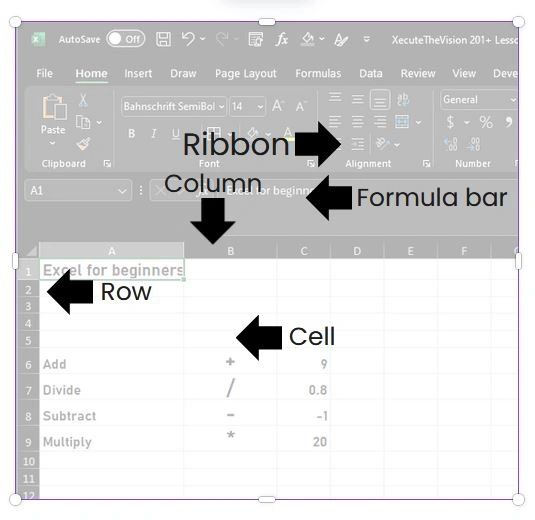
- Workbook: Your entire Excel file is called a workbook. Each workbook contains sheets (tabs at the bottom).
- Ribbon: This is the toolbar at the top of the window with tabs like “Home,” “Insert,” “Formulas,” and “Data.” Each tab contains different tools you’ll need.
- Cells, Columns, and Rows: Excel is made up of small boxes called cells, which are organized into columns (A, B, C…) and rows (1, 2, 3…). Each cell has an address (e.g., A1, B2).
- Formula Bar: This is where you can type formulas or edit the data in a cell.
Familiarizing yourself with these elements will help you navigate Excel efficiently.
2. Entering and Formatting Data in Excel
Start by entering some basic data:
- Click any cell and start typing to input text or numbers.
- Press Enter to move to the cell below or Tab to move to the right.
Formatting Tips:
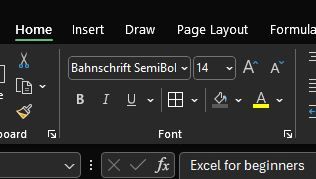
- To bold, italicize, or underline your data, use the formatting tools in the "Home" tab under the “Font” section.
- Change the appearance of numbers by selecting a cell, right-clicking, and choosing Format Cells. You can change the number format to currency, percentage, date, and more.
3. Basic Excel Formulas and Functions
Formulas are where Excel really shines! To start with, here are two simple yet powerful functions:
- SUM: Adds up a range of numbers.
- Example: In cell A1, type
=SUM(A2:A5)to add all numbers in cells A2 to A5. - AVERAGE: Calculates the average of a range of numbers.
- Example:
=AVERAGE(B2:B5)will find the average value of the numbers in that range.
Formulas always start with an equals sign (=), and you can reference any cell by its address (like A1 or B2).
4. Creating Simple Charts
Excel’s charts make data visualization easy. Here’s how you can create a simple chart:
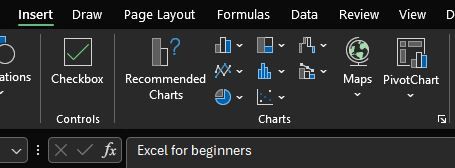
- Select the data you want to include in your chart.
- Go to the Insert tab in the Ribbon.
- Click on the type of chart you’d like to create (bar, pie, line, etc.).
Excel will generate the chart for you, and you can move it around or adjust the layout to make it more visually appealing.
5. Speeding Up with Autofill
One of the most useful tools for beginners is Autofill, which allows you to quickly fill in patterns of data.
- For example, if you type "January" in one cell, then click and drag the small square in the lower right corner of the cell downwards, Excel will automatically fill in "February," "March," and so on.
- This works for numbers, dates, and custom lists, making data entry much faster!
6. Saving and Sharing Your Work
Once your work is done, don’t forget to save it!
- Click File > Save As to save your workbook. You can choose different formats like
.xlsx(Excel’s default format) or.pdfif you want to share a non-editable version. - If you're collaborating with others, Excel allows you to share the file directly by clicking File > Share and inviting colleagues via email.
7. Excel Practice Exercise
To solidify what you’ve learned, here’s a simple exercise:
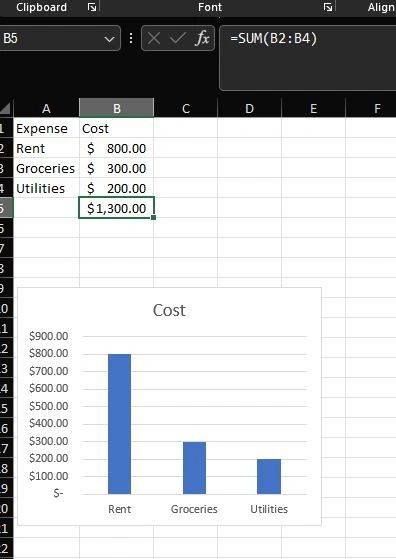
- Create a small budget using a list of expenses (e.g., rent, groceries, utilities) and their costs.
- Use the SUM formula to calculate the total cost.
- Format the cost values as currency.
- Create a simple bar chart that displays each expense category and its cost.
Congratulations! You’ve completed the basics of Excel, and you’re well on your way to mastering it. By practicing these skills and getting familiar with the interface, you’ll quickly become comfortable using Excel in everyday tasks.
If you found this guide helpful and want to learn more tips and tricks, be sure to check out the Excel course and workbook on how to improve your Excel skills!