
All about Excel errors and how to fix them
.png)
Excel is a powerful tool for data analysis and management, but it can sometimes throw up errors that disrupt your workflow. Understanding these errors and knowing how to fix them is essential for efficient Excel use. Here’s a guide to the most common Excel errors and their solutions.
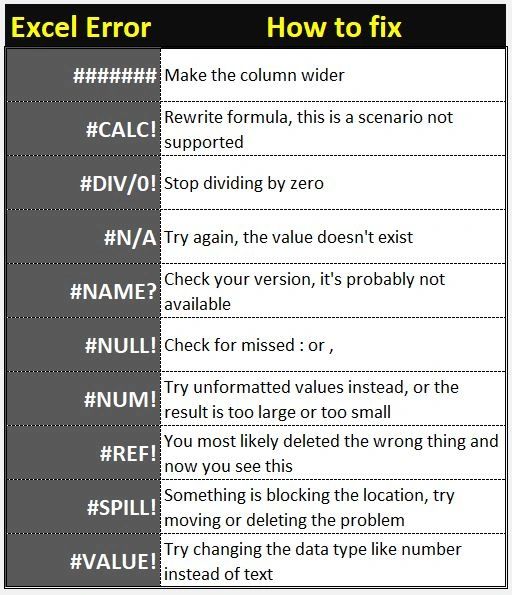
The Most Common Excel Errors
1. #DIV/0! Error
Description: This error occurs when a formula attempts to divide by zero or an empty cell.
Solution: Ensure the denominator in your division is not zero or empty. You can also use the IFERROR function to handle this error gracefully.
Example:
=IFERROR(A1/B1, "Error: Division by zero")
2. #N/A Error
Description: This error indicates that a value is not available to a function or formula. It often occurs with lookup functions like VLOOKUP or HLOOKUP when a match is not found.
Solution: Check your lookup values and ensure they exist in the data range. Use the IFNA or IFERROR function to manage this error.
Example:
=IFNA(VLOOKUP(A1, B1:C10, 2, FALSE), "Not found")
3. #VALUE! Error
Description: The #VALUE! error appears when there is an issue with the types of values used in a formula, such as text in a numeric calculation.
Solution: Ensure that all the values in your formula are of the correct type. Use functions like VALUE to convert text to numbers if necessary.
Example:
=VALUE("123") + 456
4. #REF! Error
Description: This error occurs when a formula refers to a cell that is not valid, often because cells were deleted or pasted over.
Solution: Check the cell references in your formula and correct them. Avoid deleting cells that are referenced in formulas.
Example:
=IFERROR(A1+B1, "Reference error")
5. #NAME? Error
Description: The #NAME? error appears when Excel does not recognize text in a formula, often due to a typo in the function name or range name.
Solution: Double-check the spelling of function names and ensure that all named ranges are defined. Correct any typos.
Example:
=SUM(A1:A10)
6. #NUM! Error
Description: This error indicates a problem with a number in your formula, such as an invalid argument in a function, or a result that is too large or too small to be represented.
Solution: Check the numbers and arguments in your formula. Ensure that values are within the acceptable range for the function.
Example:
=IF(A1>0, SQRT(A1), "Invalid number")
7. #NULL! Error
Description: The #NULL! error occurs when you use an incorrect range operator in a formula, such as a space instead of a comma.
Solution: Ensure you use the correct operators for ranges. Use commas to separate cell references and avoid spaces unless defining an intersection.
Example:
=SUM(A1:A10, B1:B10)
8. #SPILL! Error
Description: This error occurs when a dynamic array formula cannot output the result because the spill range is blocked by other data.
Solution: Ensure there is enough empty space for the spill range. Move or delete any data that is obstructing the spill range.
Example:
=UNIQUE(A1:A10)
9. #### Error
Description: This error appears when a cell is not wide enough to display the cell contents, typically for dates and times.
Solution: Widen the column to fit the contents or change the cell format.
Example: Drag the column boundary to widen it.
10. Circular Reference Error
Description:This error occurs when a formula refers to its own cell either directly or indirectly, creating an endless loop.
Solution: Check your formulas for circular references and correct them. Excel provides a tool to locate circular references under the "Formulas" tab.
Example:
=IF(A1<>0, B1/A1, "Check input")
In summary, Excel errors can be frustrating, but they are usually straightforward to fix once you understand what they mean. By familiarizing yourself with these common errors and their solutions, you can enhance your efficiency and accuracy when working with Excel. Remember to use functions like IFERROR and IFNA to handle potential errors gracefully in your formulas. Happy Excel-ing!